1
Install the Shopify App
Install SeeItOnYou from the Shopify App Store. After installation, the app connects with your store to sync selected product information and prepare the try-on experience.

SeeItOnYou helps Shopify merchants create personalized product previews without requiring 3D models, complex AR setup, or custom development.
Install the Shopify app, pick products to enable, add the “See It On You” button via the theme app extension, and shoppers upload a photo to receive an AI-generated try-on preview on the product page.
Install SeeItOnYou from the Shopify App Store. After installation, the app connects with your store to sync selected product information and prepare the try-on experience.
Inside the SeeItOnYou dashboard, select the products you want to enable for AI try-on. Start with a small group of products and expand later.
SeeItOnYou adds a “See It On You” button to selected product pages through a Shopify theme app extension.
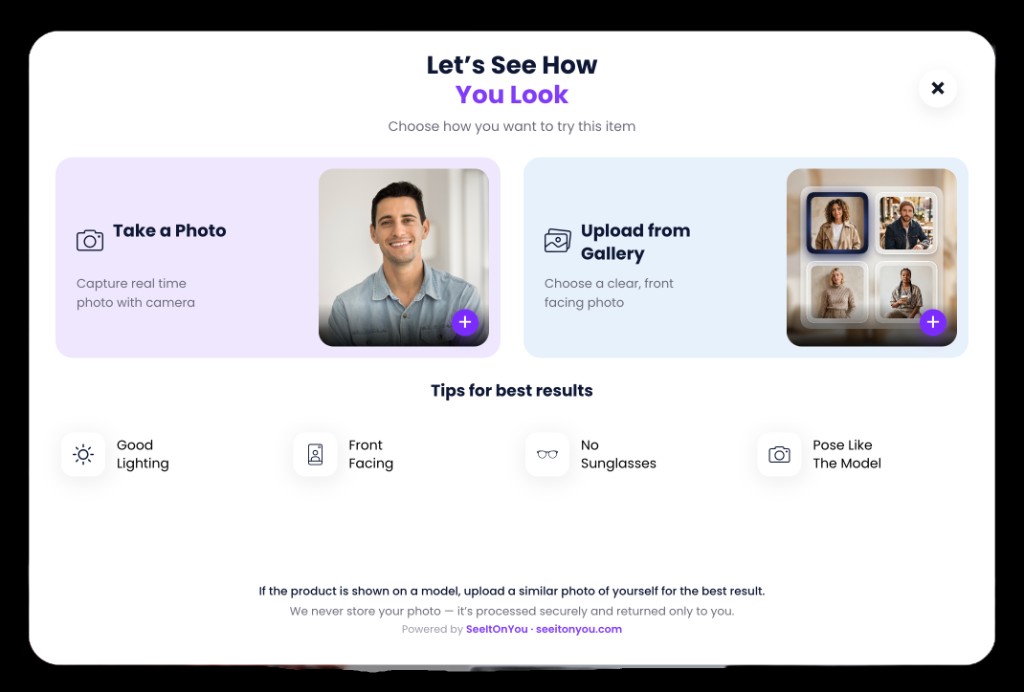
The shopper clicks the button and uploads a photo. Photo guidance can be shown before upload:
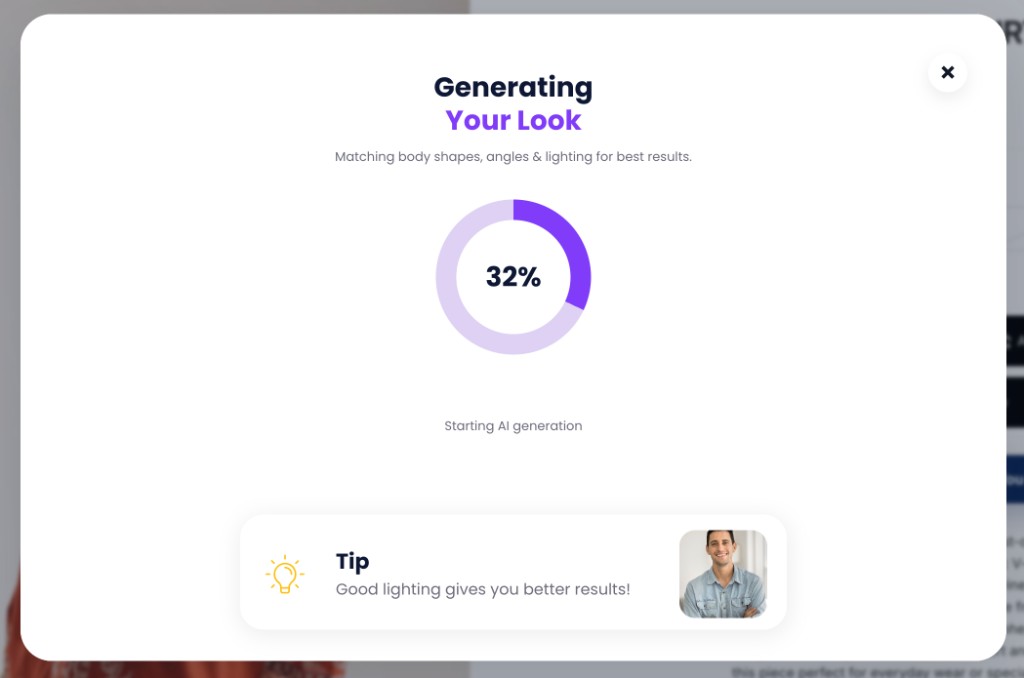
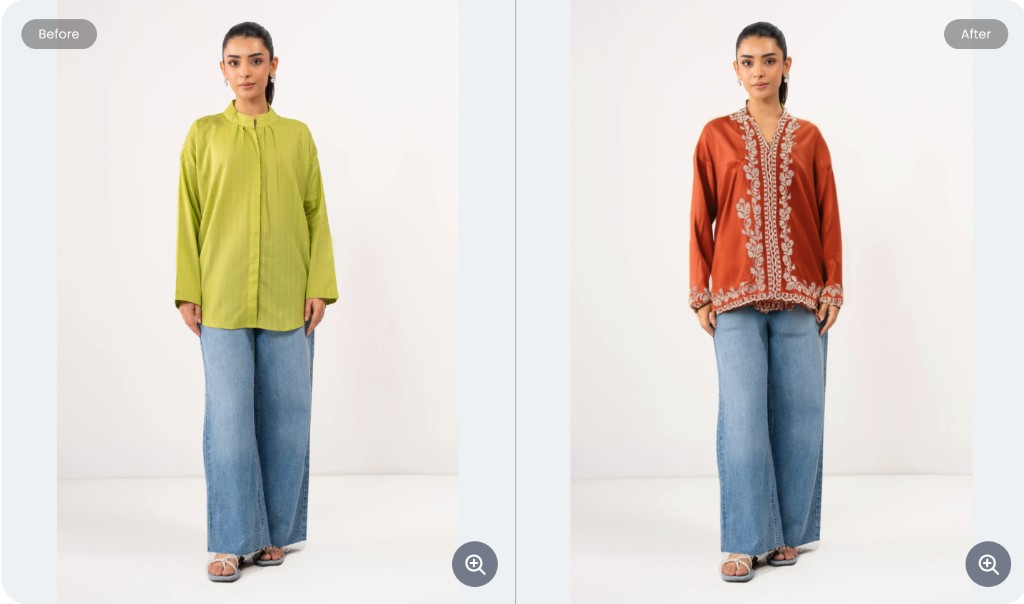
The system uses the shopper photo and product image to generate a personalized visual preview to help the shopper understand how the product may look on them.
The shopper can:
The merchant dashboard tracks key engagement and conversion signals:
SeeItOnYou creates AI-generated visual previews. Results are designed to help customers visualize products, but they should not be presented as exact fit, sizing, or measurement guarantees.
Install SeeItOnYou on your Shopify store and start offering personalized product previews.